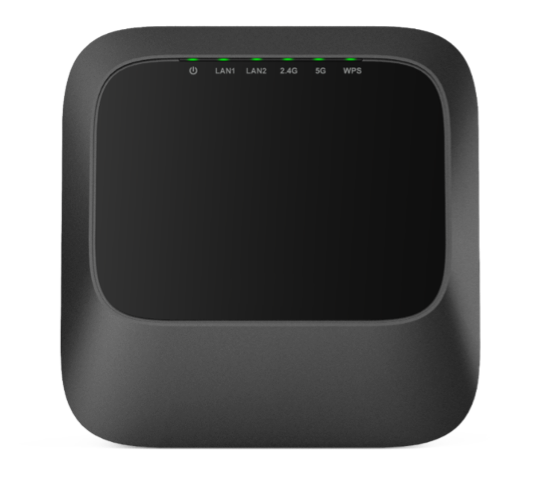
Evolution 6700 AP is our new Plume WIFI-6e pod that is designed to make your WIFI experience Pro.
Click to Learn More
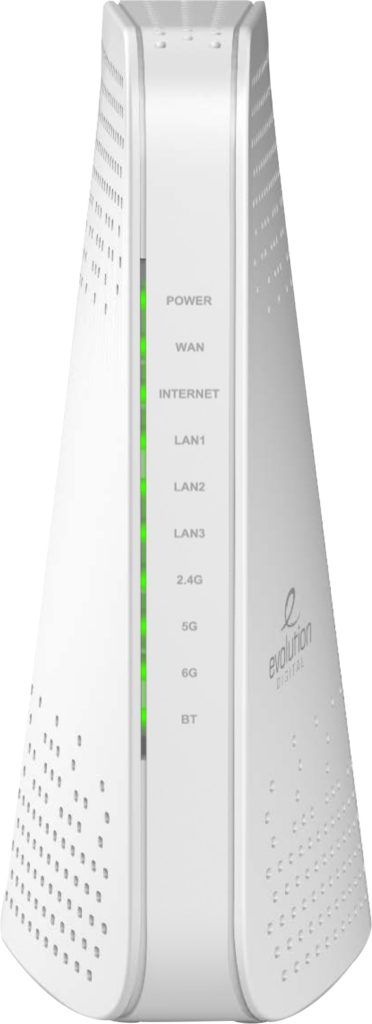
EVO1840AP is a dual-operational Wi-Fi 6E AP router and mesh beacon, offering a secure solution for delivering Wi-Fi functionality.
Click to Learn More
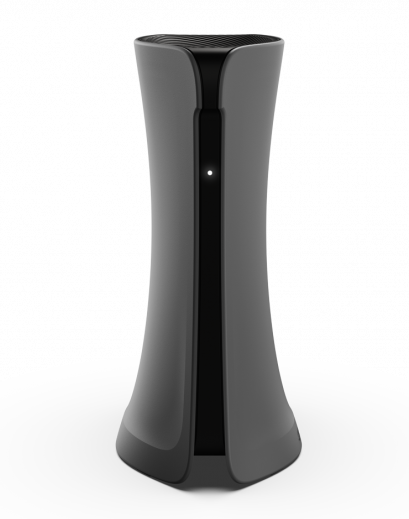
The ADTRAN 834-5 is a DualBand Wi-Fi 5 Gigabit Ethernet router. It is built to deliver Wi-Fi 5 performance, true gigabit routing , and advanced service delivery capabilities.
Click to Learn More
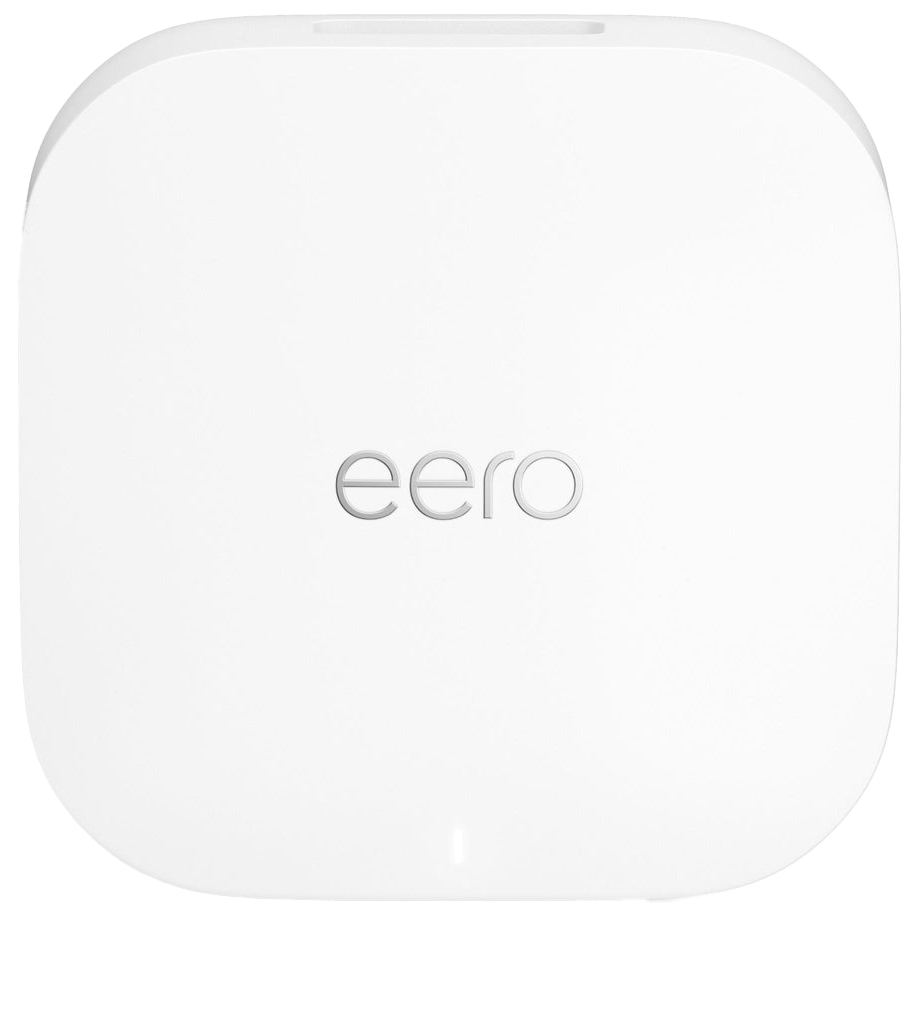
Eero 6E is Amazon’s advanced Wi-Fi mesh system that uses the latest Wi-Fi 6E technology, adding a new 6 GHz band for faster speeds, less interference, and better support for many devices at once.
Click to Learn More
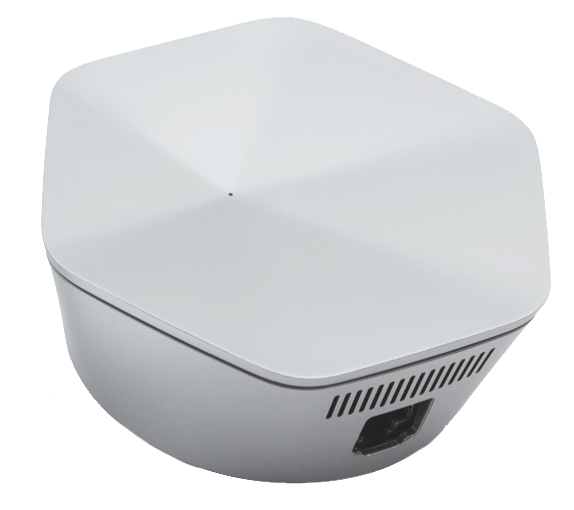
For people working from home and multiple users that would require a seamless experience with high bandwidth applications, such as video calls, gaming or 4K streaming
Click to Learn More
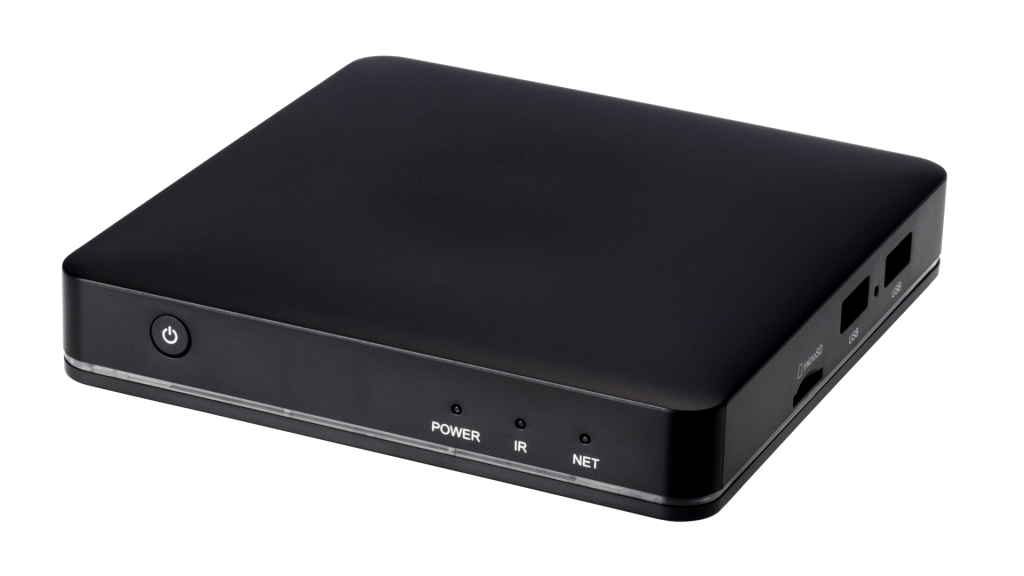
Sleek compact design combined with IR or Bluetooth connectivity enables out-of-sight positioning in the home.
Click to Learn More
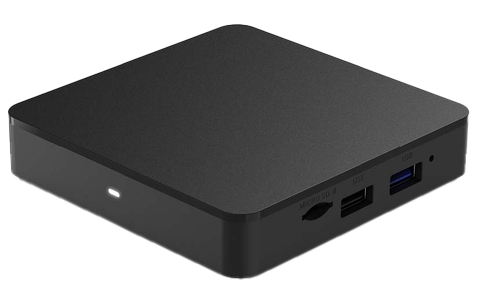
TIVO FORCE 1 offers an immersive 4K UHD experience that vastly outpaces standard HD, this proven streaming solution simplifies video distribution while maximizing efficiency with its advanced HEVC/H.265 technology.
Click to Learn More
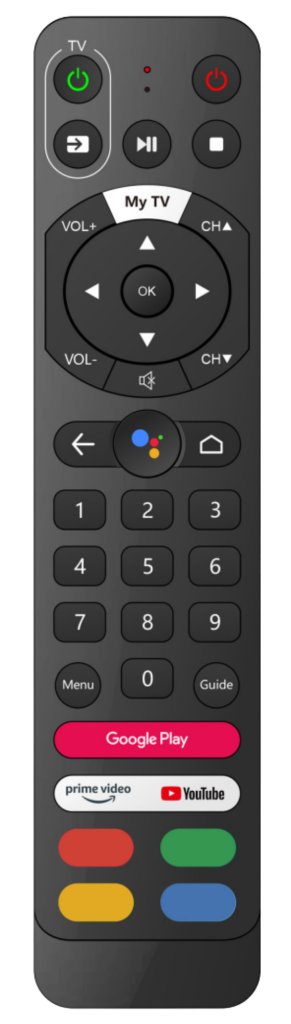
The Evo Pro Remote delivers advanced functionality and seamless control in a compact, user-friendly design.
Click to Learn More
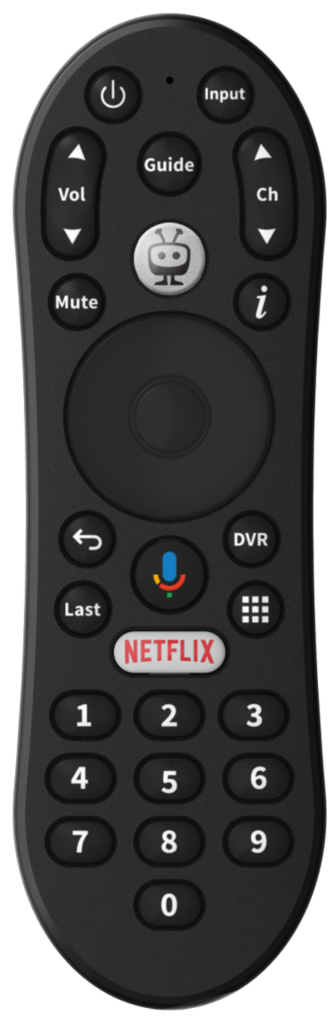
The TiVo Stream 4K Remote Control provides simple, responsive navigation with dedicated buttons for quick access to your favorite streaming apps.
Click to Learn More
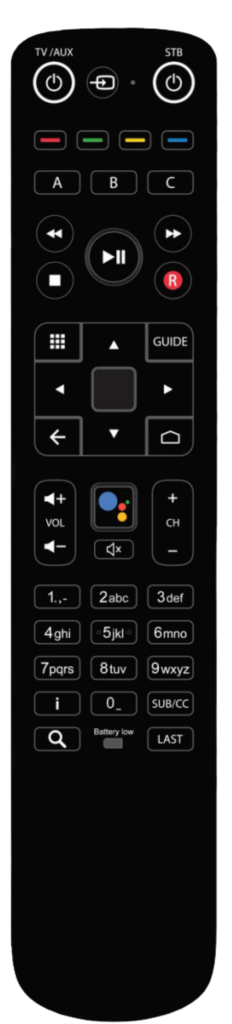
The Evo Pro Remote offers precise, reliable control with an ergonomic design that makes operating your device smooth and intuitive.
Click to Learn More
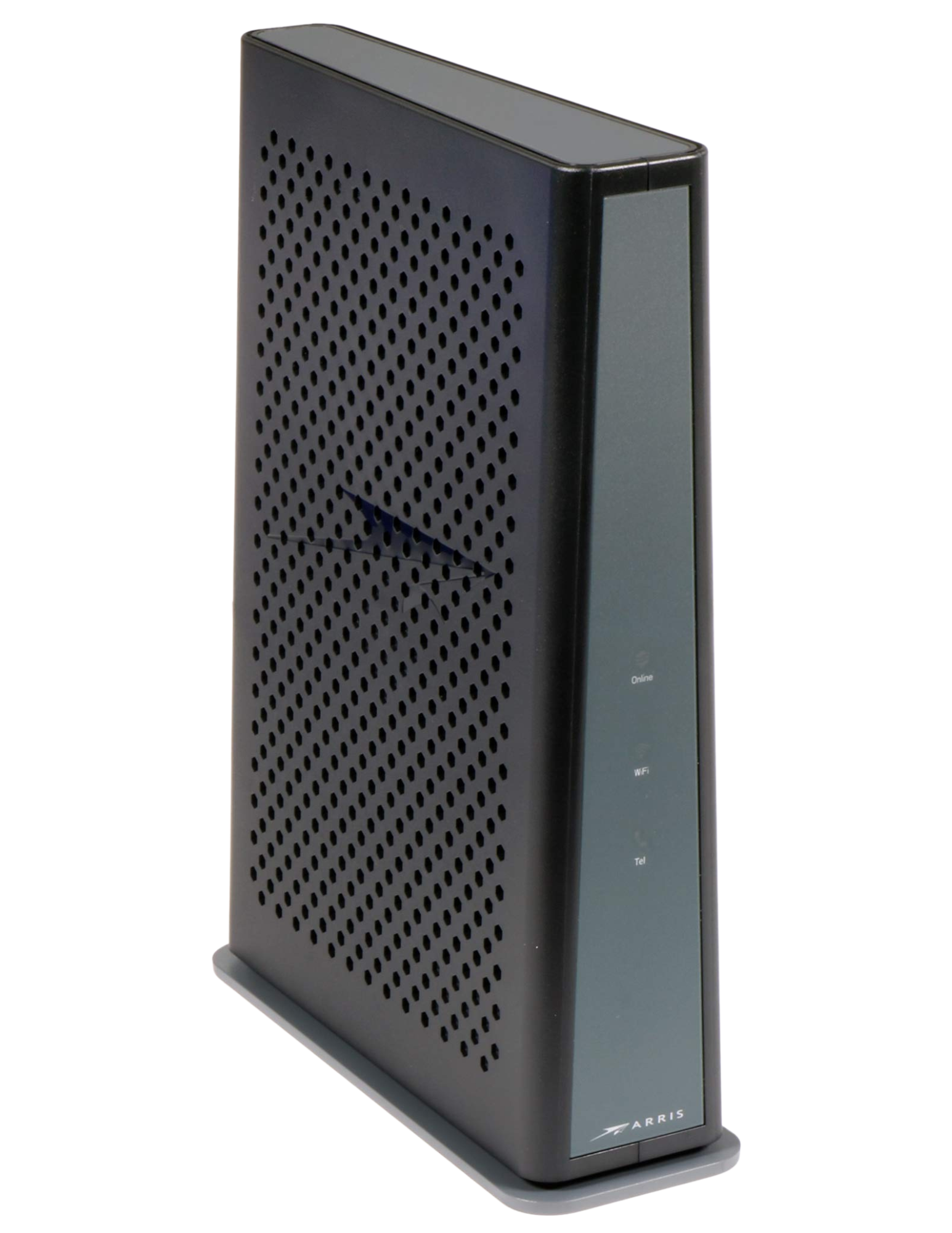
The TG3452 is a high-performance gateway with high compatibility channels, bandwidth tuner, and a powerful multi-processor. Includes a 4-port Gigabit router. With easy home distribution, filtering, and multiple configuration options.
Click to Learn More
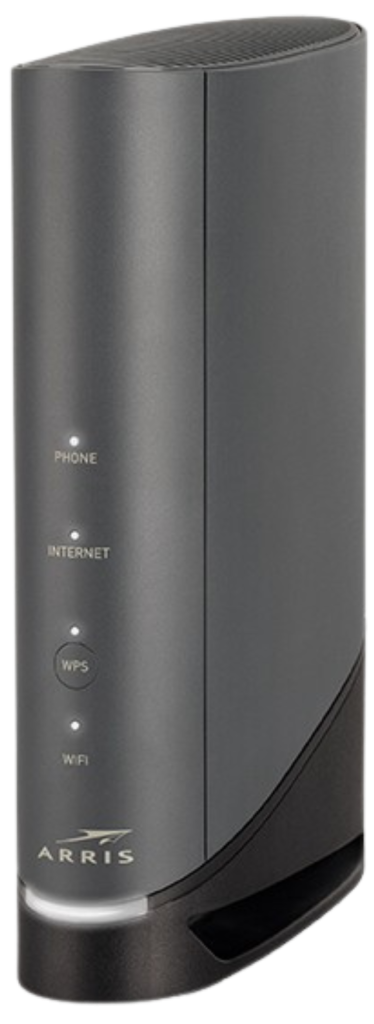
The TG6452 Telephony Wireless Gateway that delivers high performance hub for internet, voice, video, and data. It provides high speed, reliable coverage in dense environments. Integrated with Plume, it enables whole-home Wi-Fi management.
Click to Learn More
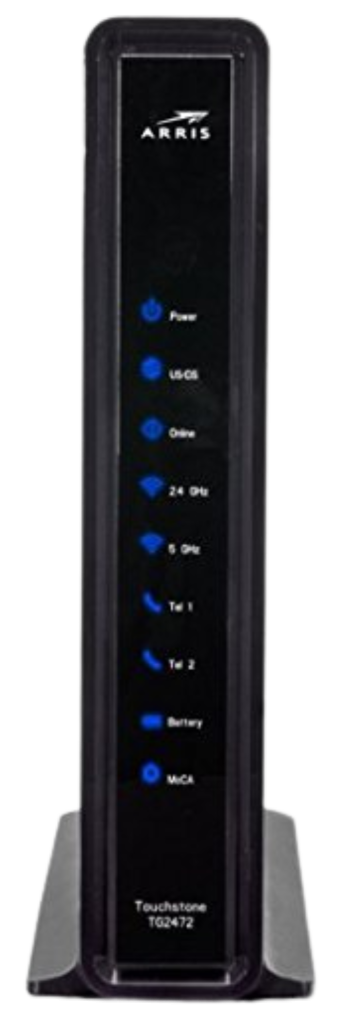
The TG2472 is a high-performance gateway with advanced dual-band Wi-Fi and USB connectivity. It delivers strong home coverage, simplified remote management, and reliable support for Internet, voice, and video services.
Click to Learn More
It’s easy, just click the button bellow and use our online order section. Add the services you want, fill in your info, and you are ready to go!
EVO6700AP Wi-Fi 6 dual-operational AP router and mesh beacon enables service providers to safely provide high quality Wi-Fi to all locations in the subscriber’s home. OpenSync 3.4 certified, the EVO6700AP functions as the main wireless AP in the home or a mesh beacon to extend Wi-Fi coverage from an existing Plume-enabled router to the whole home.
Enjoy blind spot-free WiFi experience at home along with always-on cyber-protection, parental controls, and in-home motion sensing. Note: For the best performance, HomePass needs about two days to learn and adapt to your home WiFi behavior.
Hardware:
Network Features:
Interfaces:
Wi-Fi:
Software Features:
We recommend using up to 8 pods for optimal performance, but you can use as many as 25 based on your needs.
When it comes to getting the best performance out of your Premium WiFi network, pod placement is everything! While every home has a unique size, shape, and WiFi environment, here are some guidelines for maximizing your speeds. We recommend one Pod for every two rooms. Pods should be spread evenly around the home, especially in rooms and open spaces where it is more common to use WiFi. Typically, they should be placed about 30-40 feet apart through walls and 60-80 feet apart for large open spaces (like a large living room). Be sure to position pods in central locations along the interior walls of your home to take advantage of the pods’ omnidirectional radios!
Find more FAQs here!
EVO1840AP, a cutting-edge Wi-Fi 6E AP router and mesh beacon, empowers service providers with a secure, versatile solution for unparalleled Wi-Fi performance.
Enjoy blind spot-free WiFi experience at home along with always-on cyber-protection, parental controls, and in-home motion sensing. Note: For the best performance, HomePass needs about two days to learn and adapt to your home WiFi behavior.
Hardware
CPU: Quad-core @ 1.6 GHz Memory: 1024MB DDR3 Flash: 512MB NAND
Network Features
Protocols: IPv4, IPv6 WAN Types: Dynamic IP, Static IP, PPPoE Wi-Fi Encryption: WPA2/3 Personal / Enterprise WLAN: Guest Network / Multi-SSID QoS: IEEE 802.1p
Interfaces
WAN/LAN: 2.5GbE (x1) LAN: 1GbE (x3) BLE: Bluetooth 5.0
Wi-Fi
Standard: Wi-Fi 6E (802.11a/b/g/n/ac/ax) Band Configuration: Tri-band Channel Width: 20, 40, 80, 160 MHz Spectral Bands: 2.4 GHz (2×2), 5 GHz (4×4), 6 GHz (2×2) Per Band PHY: 0.57 Gbps, 4.8 Gbps, 2.4 Gbps Peak PHY: 7.8 Gbps Peak QAM: 1024K QAM
Software Features
Plume: HomePass, WorkPass, Haystack, Uprise, Harvest OpenSync: OpenSync 3.2 CAF Support: SamKnows (via Plume) Smart Wi-Fi: Intelligent Mesh, Band / Client Steering Mode: Router or Bridge Mode
Physical Specifications
Size: 6.9 x 5.4 x 2.8 inches (175 x 137 X 71 mm) Weight: 2.5 pounds (1.13 kg) Power Supply: External, 12V/2A
We recommend using up to 8 pods for optimal performance, but you can use as many as 25 based on your needs.
When it comes to getting the best performance out of your Premium WiFi network, pod placement is everything! While every home has a unique size, shape, and WiFi environment, here are some guidelines for maximizing your speeds. We recommend one Pod for every two rooms. Pods should be spread evenly around the home, especially in rooms and open spaces where it is more common to use WiFi. Typically, they should be placed about 30-40 feet apart through walls and 60-80 feet apart for large open spaces (like a large living room). Be sure to position pods in central locations along the interior walls of your home to take advantage of the pods’ omnidirectional radios!
Find more FAQs here!
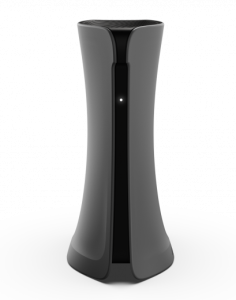
The ADTRAN 834-5 is an affordable, carrier-grade dual-band Wi-Fi 5 Gigabit Ethernet router designed for high performance and advanced service delivery. It provides strong Wi-Fi 5 coverage, true gigabit routing, and supports value-adding applications through its open-source-based SmartOS, all in a home-friendly design.
The ADTRAN 834-5 is a multi-service access device designed to provide high-speed fiber broadband and voice services, typically used by ISPs and telecom providers.
Wi-Fi
Dual-band Wi-Fi 5 (802.11 b/g/n/ac) wireless support (2.4 GHz + 5 GHz)
4×4 MIMO per band for enhanced throughpu
Ethernet
USB
Routing & Software Features
Symmetric 1 Gbps throughput
Firewall with Stateful Packet Inspection
NAT, NAPT, DHCP (v4/v6), DNS proxy, Dynamic DNS
IPv6 support (SLAAC, DHCPv6, PPPoEv6, DNSv6, DS-Lite)
VLAN tagging/staking, QoS, IGMP v2/v3 snooping
Universal Plug and Play (UPnP), NAT traversal
Wireless Security & Management
WPA2 wireless security
Push-button WPS
Multi-region DFS support
Bluetooth 5.0 (for management/mesh extensions)
Physical & Power
Dimensions: ~249 × 90 × 195 mm (9.8″ × 3.5″ × 7.7″)
Weight: ~2.6 lb (≈1.17 kg)
Power: External adapter 100–240 VAC → 12 VDC @ ~3 A
Typical power consumption ~30 W
Find more FAQs here!
The Eero WIFI 6E is a fast, reliable mesh Wi‑Fi system designed for modern homes. It adds a 6 GHz band for faster speeds and reduced congestion. Each unit covers up to 2,000 sq. ft., and you can expand your system. It’s easy to set up with the eero app, supports smart home devices with a built-in Zigbee hub, and offers speeds up to 2.3 Gbps perfect for streaming, gaming, and working from home.
Eero Wi-Fi 6E is a next-generation mesh Wi-Fi system from Amazon’s Eero brand that supports the latest Wi-Fi 6E standard. It delivers faster speeds, lower latency, and greater capacity by adding a new, ultra-fast 6 GHz band to the existing 2.4 GHz and 5 GHz bands
Here’s what that means for you:
Wi-Fi 6E technology: Unlocks the new 6 GHz band, reducing congestion and improving performance—especially helpful in busy homes with lots of devices.
Tri-band mesh system: Creates a seamless, whole-home Wi-Fi network with fast and reliable coverage across every room.
High performance: Supports up to 2.3 Gbps speeds and can cover up to 2,000 sq. ft. per unit—great for 4K streaming, gaming, and smart home devices.
Expandable: You can use up to 25 pods in one system (8 recommended for best performance).
Easy setup and control: Managed through the eero app, with features like parental controls and real-time device monitoring.
Smart home ready: Built-in Zigbee hub lets you connect compatible smart home devices directly.
In short, Eero Wi-Fi 6E gives you faster, more reliable Wi-Fi with wider coverage and future-proof tech for modern homes.
Next-gen Wi-Fi 6E: Adds the new 6 GHz band for faster speeds and less interference.
Tri-band coverage: Uses 2.4 GHz, 5 GHz, and 6 GHz to deliver smoother streaming, gaming, and browsing.
Blazing speeds: Supports speeds up to 2.3 Gbps (wired + wireless).
Wide coverage: Covers up to 2,000 sq. ft. per unit—great for homes of all sizes.
Expandable: Use up to 25 units in one system (8 recommended for the best performance).
Smart home ready: Built-in Zigbee hub to connect compatible smart devices.
Powerful hardware: 1 GHz processor, 1 GB RAM, and high-performance antennas.
Easy setup: Quick install and control through the eero mobile app.
Wired options: Includes 1 Gigabit and 1 Multi-Gig (2.5 Gbps) Ethernet port.
Device-friendly: Handles over 100 connected devices with ease.
Optional features: Eero Plus subscription adds ad blocking, security tools, and parental controls.
We recommend using up to 8 pods for optimal performance, but you can use as many as 25 based on your needs.
Place in a central, open area—not hidden in a cabinet or behind a TV.
Avoid placing it in the basement unless that’s where your modem is—Wi-Fi doesn’t travel well through floors.
Space each unit about 30–50 feet apart (1–2 rooms away), with minimal walls or obstructions in between.
Avoid placing them near:
Microwaves, baby monitors, or cordless phones.
Large metal objects or thick concrete walls.
Place them waist to eye level (on a shelf or table), not on the floor.
If your home is wired with Ethernet, connect your Eeros via cable—this gives you the fastest and most stable mesh network.
Find more FAQs here!
For people working from home and multiple users that would require a seamless experience with high bandwidth applications, such as video calls, gaming or 4K streaming
Enjoy blind spot-free WiFi experience at home along with always-on cyber-protection, parental controls, and in-home motion sensing. Note: For the best performance, HomePass needs about two days to learn and adapt to your home WiFi behavior.
96mm W x 87mm H x 40mm D Not including plug
217g
100 to 240 VAC, 50 to 60Hz
4.5W standby 10W average 15W maximum
Type A (NA and Japan) Type C/E/F (EU) Type G (UK)
Auto-sensing Router or Bridge mode
NAT, DHCP server, UPnP, client UP reservation, port forwarding
Managed 2.4 GHz and 5 GHz single SSID
Custom password ACL with HomePass Access
4×4 MIMO 802.11a/n/ac 5GHz Upper 2×2 MIMO 802.11a/n/ac 5GHz Lower 2×2 MIMO 802.11b/g/n 2.4GHz Tri-band, tri-concurrent radio operation, 5GHz MU-MIMO with Beamforming
5GHz Lower: 20/40/80/160 5GHz Higher: 20/40/80 2.4GHz: 20/40
5GHz 36 to 48, 149 to 161 2.4GHz 1 to 13
52 to 64, 100 to 144 Region Dependent
Dual 100/1000 base-T ethernet with autosense WAN or LAN configuration
Bluetooth low energy
0°C to 40°C
10% to 90%
-20°C to 70°C 10% to 90% (Relative Humidity)
WPA2-PSK (KRACK patched)
AES
We recommend using up to 8 pods for optimal performance, but you can use as many as 25 based on your needs.
When it comes to getting the best performance out of your Premium WiFi network, pod placement is everything! While every home has a unique size, shape, and WiFi environment, here are some guidelines for maximizing your speeds. We recommend one Pod for every two rooms. Pods should be spread evenly around the home, especially in rooms and open spaces where it is more common to use WiFi. Typically, they should be placed about 30-40 feet apart through walls and 60-80 feet apart for large open spaces (like a large living room). Be sure to position pods in central locations along the interior walls of your home to take advantage of the pods’ omnidirectional radios!
Find more FAQs here!
Sleek compact design combined with IR or Bluetooth connectivity enables out-of-sight positioning in the home.
The Amino Amigo 7X is a high-quality, operator-tier set-top box for streaming and linear TV. It’s not a Wi‑Fi router or gateway device—so you’d still need a separate router or mesh system for internet connectivity.
Processing CPU 18.5K
DMIPS DRAM 2GB Flash 8GB eMMC
Software Operating System Android TV Operator Tier certified Audio / Video Interfaces Digital Video HDMI 2.1 Analog Video CVBS + L/R
Audio Video Formats Video Resolutions 480i, 480p, 576i, 576p, 720p, 1080i, 1080p60, 2160p60 10-bit (4Kp60) Audio Codecs Dolby Digital, Dolby Digital Plus, MPEG I Layer 1 and 2, LC-ACC & HE-AAC Video Codecs AVC/H.264 High Profile @ Level 4.2, HEVC/H.265, MPEG-1/ H.261/H.263, MPEG-2 Main Profile @ High Level, VP9 Other codecs on request Other Interfaces Ethernet 10/100 Base-T Wi-Fi 2×2 802.11ac/n dual-band selectable Remote Control Support IR 36kHz / BLE USB 1 x USB 3.0, 1 USB x 2.0 Status LED Power/Standby, IR Activity, Network Activity SD Card Slot Regulatory Compliance Environment and Safety FCC Certified, CB Certified, CE Certified and RoHS Compliant Power Power Supply External, 12V/1A Power Consumption 10.5W maximum, fully equipped Operating Environment Temperature-5ºC to 40ºC (23ºF to 104ºF) Humidity 5-85% (non-condensing) Physical Properties Size (L*W*H) 120 mm x 120 mm x 28 mm Weight 230g
The Amigo 7X offers multiple options for user control and connectivity. It supports both infrared (IR) remote controls and Bluetooth connectivity, allowing for flexible pairing with various accessories or RF remotes. The device also features LED indicators that provide visual feedback: one for power and activity status, one that lights up when receiving signals from a remote, and another to indicate internet connectivity. These features ensure users can easily operate the device and understand its status at a glance.
To set up your Amigo 7X, you’ll need the following:
The Amigo 7X device
The included power adapter (must be the original one provided)
An HDMI cable (recommended) or composite A/V cable (if using older TVs)
A network connection – either Wi-Fi or Ethernet
A TV with an available HDMI or A/V input
Find more FAQs here!
TIVO FORCE 1 offers an immersive 4K UHD experience that vastly outpaces standard HD, this proven streaming solution simplifies video distribution while maximizing efficiency with its advanced HEVC/H.265 technology.
The TiVo Force 1—often branded as the EVO Force 1—is a modern Android TV–based streaming set-top box used by cable and broadband providers to deliver TiVo’s IPTV and streaming platform; it supports 4K video, runs standard streaming apps, and uses TiVo’s interface and cloud-based TV features, but unlike classic TiVo hardware, it is not a DVR and has no built-in recording.
Hardware
• Chipset: Amlogic S905X4, quad-core ARM Cortex-A55
• GPU: ARM Mali-G31 MP2
• RAM: 2 GB DDR4
• Storage: 16 GB or 32 GB eMMC (varies by provider)
• Networking: 100 Mbps Ethernet; Wi-Fi 802.11 b/g/n/a/ac/ax dual-band 2×2 MIMO; Bluetooth 5.0
Video and Audio
• HDMI 2.1 with HDCP 2.2
• Supports up to 4K UHD at 60 Hz
• Video codecs: AV1, VP9, HEVC (H.265), H.264, MPEG-2, MPEG-1
• HDR formats: HDR10, HDR10+, HLG, Dolby Vision
• Audio: Dolby Digital, Dolby Digital Plus, Dolby Atmos pass-through; DTS-HD
Software
• Operating system: Android TV (versions vary by provider)
• Google Assistant and Chromecast support when enabled by provider
• Widevine L1 DRM on most builds
Ports and Physical
• USB: One USB 3.0 port and one USB 2.0 port
• MicroSD card slot
• Ethernet port (100 Mbps)
• Dimensions: Approximately 96 × 96 × 18 mm
• Power: 5 V DC, 2 A external adapter
The TiVo Force 1 connects to user controls in a few standard ways, depending on how your provider configures it:
Physical Remote Control: It pairs with an infrared (IR) or Bluetooth remote supplied by your TV provider. Bluetooth remotes don’t need a direct line of sight, while IR remotes do.
Wi-Fi/Bluetooth Devices: You can often pair Bluetooth keyboards, game controllers, or other Bluetooth input devices through the Android TV settings.
Android TV Interface: The on-screen interface is navigated using the remote, and many remotes include dedicated buttons for Google Assistant (voice control) and Android TV functions.
Voice Control: If your remote or setup supports Google Assistant, you can speak commands into the remote’s built-in microphone.
To set up your Amigo 7X, you’ll need the following:
The Amigo 7X device
The included power adapter (must be the original one provided)
An HDMI cable (recommended) or composite A/V cable (if using older TVs)
A network connection – either Wi-Fi or Ethernet
A TV with an available HDMI or A/V input
Find more FAQs here!
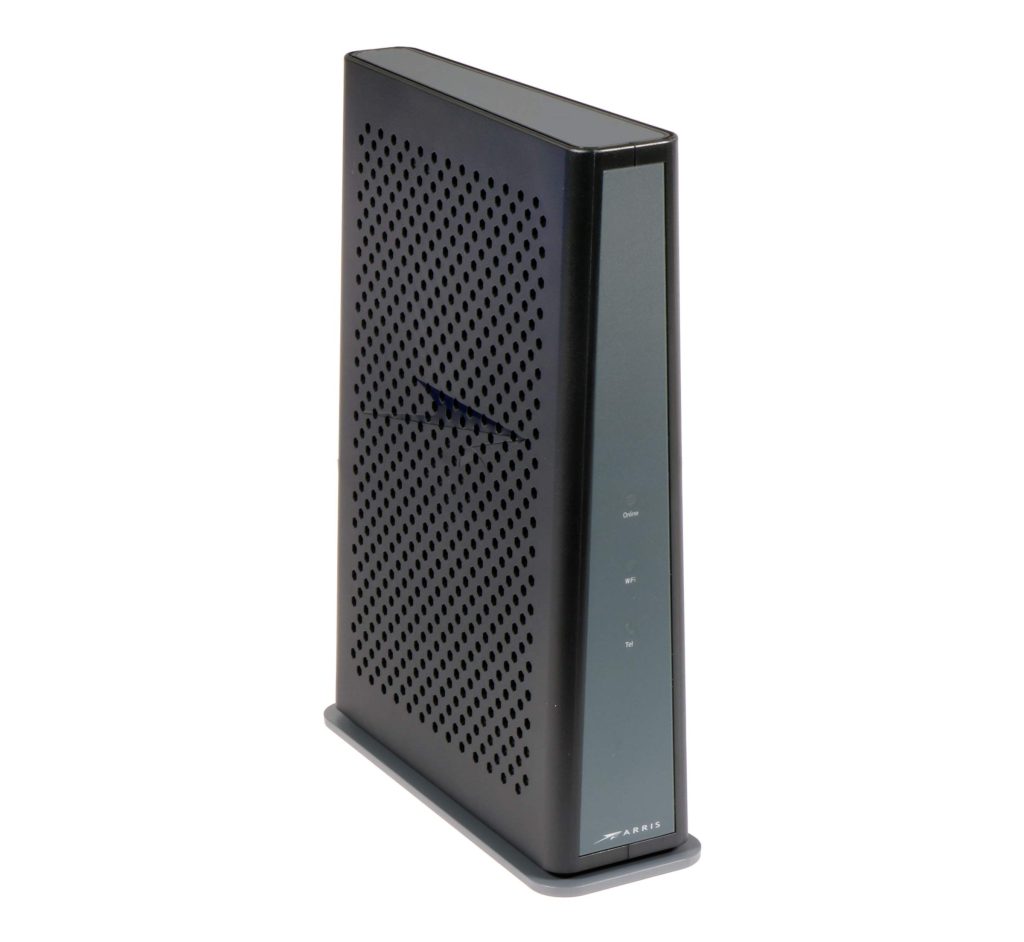
The TG3452 is a high-performance gateway with high compatibility channels, bandwidth tuner, and a powerful multi-processor. Includes a 4-port Gigabit router. With easy home distribution, filtering, and multiple configuration options.
It’s a DOCSIS 3.1 cable voice gateway — meaning a modem + Wi-Fi router + telephony (voice) device in one. It connects to cable internet and provides wired and wireless networking, plus phone service if enabled by your ISP.
It’s capable of multi-gigabit data rates downstream (DOCSIS 3.1 + bonded channels) and high upstream throughput, depending on your ISP plan — up to about 2.5 Gbps or more in ideal setups
It has 4 Gigabit Ethernet LAN ports for wired devices like gaming consoles, PCs, switches, etc.
Attach the coax cable from your wall to the gateway’s F-connector.
Connect power.
Wait for the device lights to stabilize (Power → DS/US → Online).
Connect devices via Wi-Fi or Ethernet.
Find more FAQs here!
The TG6452 Telephony Wireless Gateway that delivers high performance hub for internet, voice, video, and data. It provides high speed, reliable coverage in dense environments. Integrated with Plume, it enables whole-home Wi-Fi management.
It’s a DOCSIS 3.1 cable gateway that integrates a cable modem, Wi-Fi 6 (802.11ax) router, and networking features into one unit for home broadband use.
It supports high-speed broadband and multi-gigabit plans through DOCSIS 3.1 and can go beyond traditional gigabit limits depending on ISP provisioning.
Its Wi-Fi 6 and advanced features can cover many homes effectively, but setup and placement matter. For larger spaces or thick walls, a mesh system may still help.
The basic setup is straightforward (plug in and connect), but advanced settings may vary by ISP or Plume configuration.
Find more FAQs here!
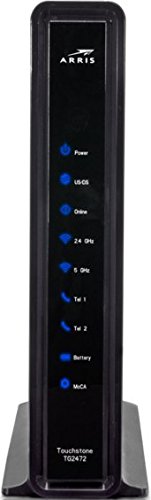
The TG2472 is a high-performance gateway with advanced dual-band Wi-Fi and USB connectivity. It delivers strong home coverage, simplified remote management, and reliable support for Internet, voice, and video services.
A DOCSIS 3.0 cable gateway that combines:
Cable modem
Wi-Fi router (2.4 GHz + 5 GHz)
Ethernet switch
Phone (VoIP) support on some ISP versions
802.11ac (Wi-Fi 5)
Dual-band: 2.4 GHz and 5 GHz
Power: solid = on
DS/US: blinking = connecting, solid = locked
Online: solid = connected
Wi-Fi: blinking = activity
In an open, central area away from appliances or metal surfaces, about 3 ft off the ground for optimal Wi-Fi coverage.
Find more FAQs here!
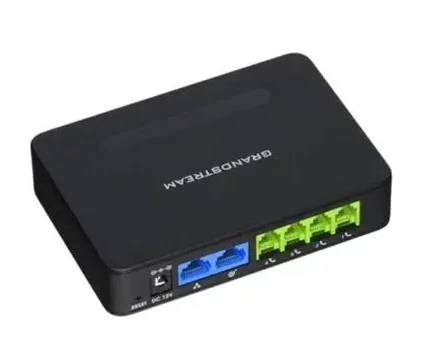
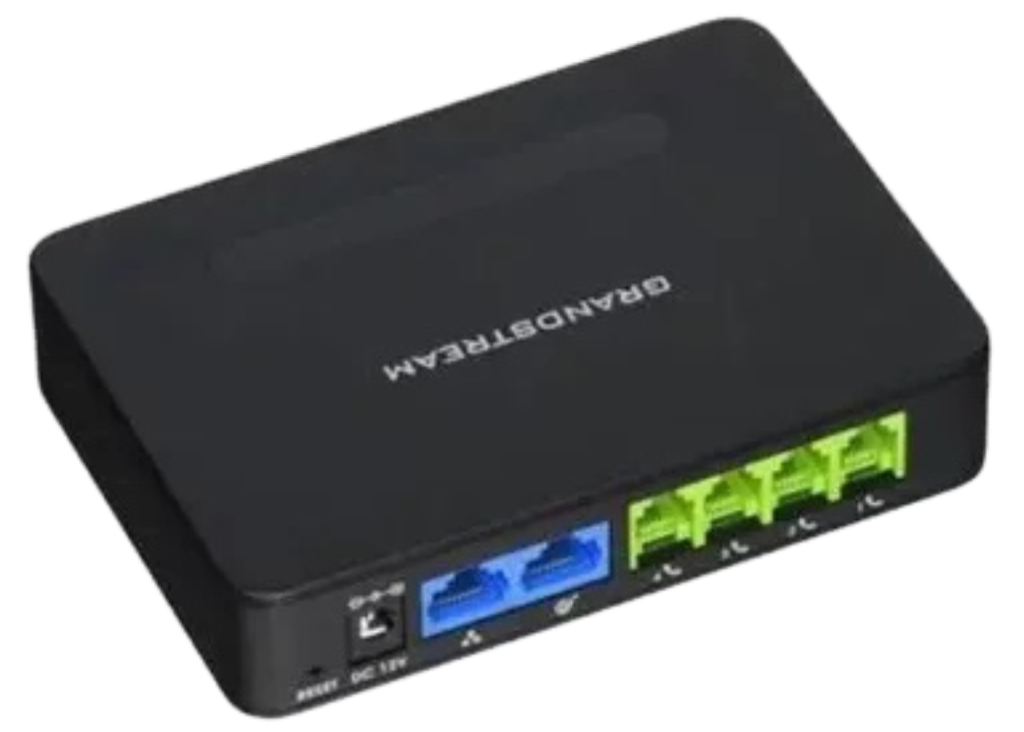
The HT814 is a 4-port Analog Telephone Adapter (ATA) that allows you to connect up to four analog telephones or fax machines to a VoIP service over an Ethernet network. It includes a NAT router and supports SIP accounts.
The HT814 is a 4-port Analog Telephone Adapter (ATA) that allows you to connect up to four analog telephones or fax machines to a VoIP service over an Ethernet network. It includes a NAT router and supports SIP accounts.
Essential Equipment
Find more FAQs here!