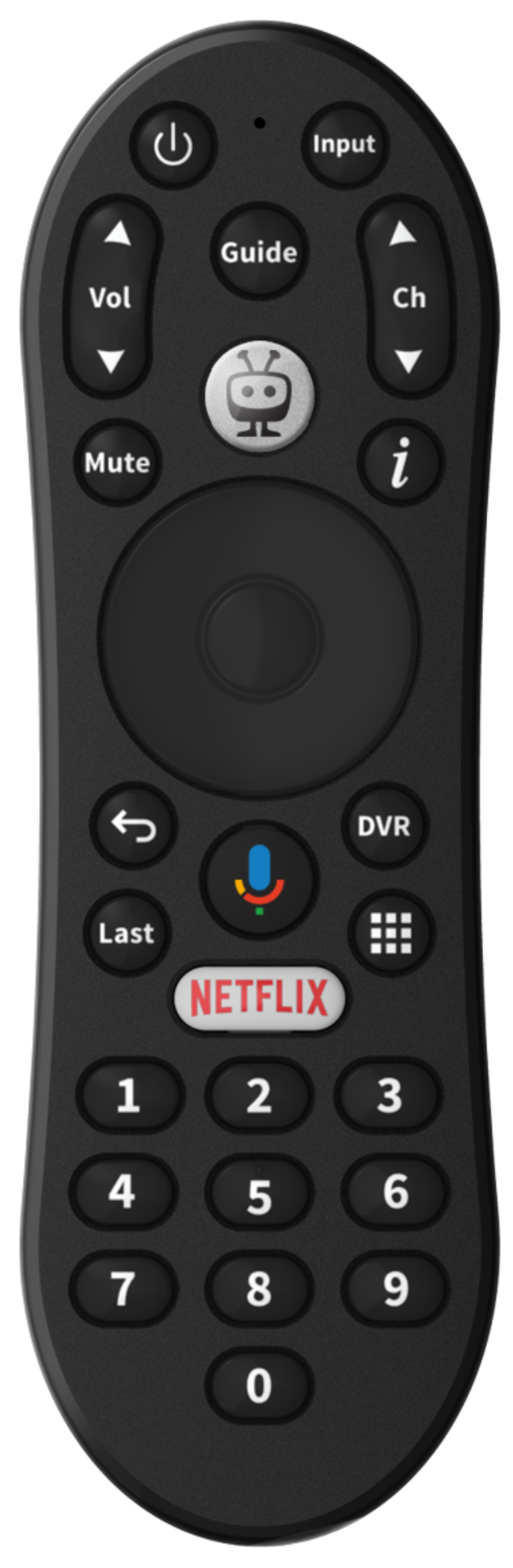
Selects the input for your TV, Video Game Console or Soundbar
11. Guide
Takes you to the on-screen Guide
12. Channels
Changes the channels "UP" and "Down"
13. "I"
Shows more info about what you are watching
14. OK Button
In the CENTER of the Controller button, accepts the current selection
15. DVR
Lets you schedule and access your recordings
16. Voice Search
Find your shows
17. Apps
Takes you to all your apps
18. Numbers
Enters specific channels or Parental PIN
Re-pairing the Remote Control
If you are have issues with your remote control, it might need to be re-paired with the EVO FORCE 1 box.
On the remote, press and hold both the TiVo button and the Back button at the same time until the light next to the Microphone turns solid red.
Release both buttons – the light will flash amber briefly.
The TV screen will show instructions if it’s a new remote. If it’s not a new remote, do not push any buttons and wait about 30 seconds for the pairing process to complete. The screen will return to regular programming when done.
If pairing doesn’t complete automatically, repeat steps 1 – 3.
If pairing fails again, you ma need to factory reset the remote. (See section below.)
If pairing fails after a factory reset, contact the Help Desk for assistance.
Pairing a New Remote Control
If you have a new remote control, it will need to be paired with your EVO FORCE 1 box.
One the remote, press and hold both the TiVo button and the Back button at the same time until the light next to the Microphone flashes quickly.
Release both buttons – the pairing process will begin automatically.
Wait several seconds for the pairing process to complete. The screen will show a success message when done.
Factory Reset a Remote Control
Use this option only if you are unable to re-pair the remote control (section above) or if instructed by the Help Desk.
A factory reset will unpair the remote with the box and any other accessories it’s set up with: TV, Soundbar, etc.
On the remote, press and hold both the TiVo and Power Buttons at the same time for about (3) seconds un the light next to the Microphone turns solid RED.
Press the Volume Down button (3) times, then press the TiVo button – the RED LIGHT will flash (3) times.
Re-pair the remote control using the instructions above.