
Eero WIFI FAQs
Get answers quickly for our most asked questions
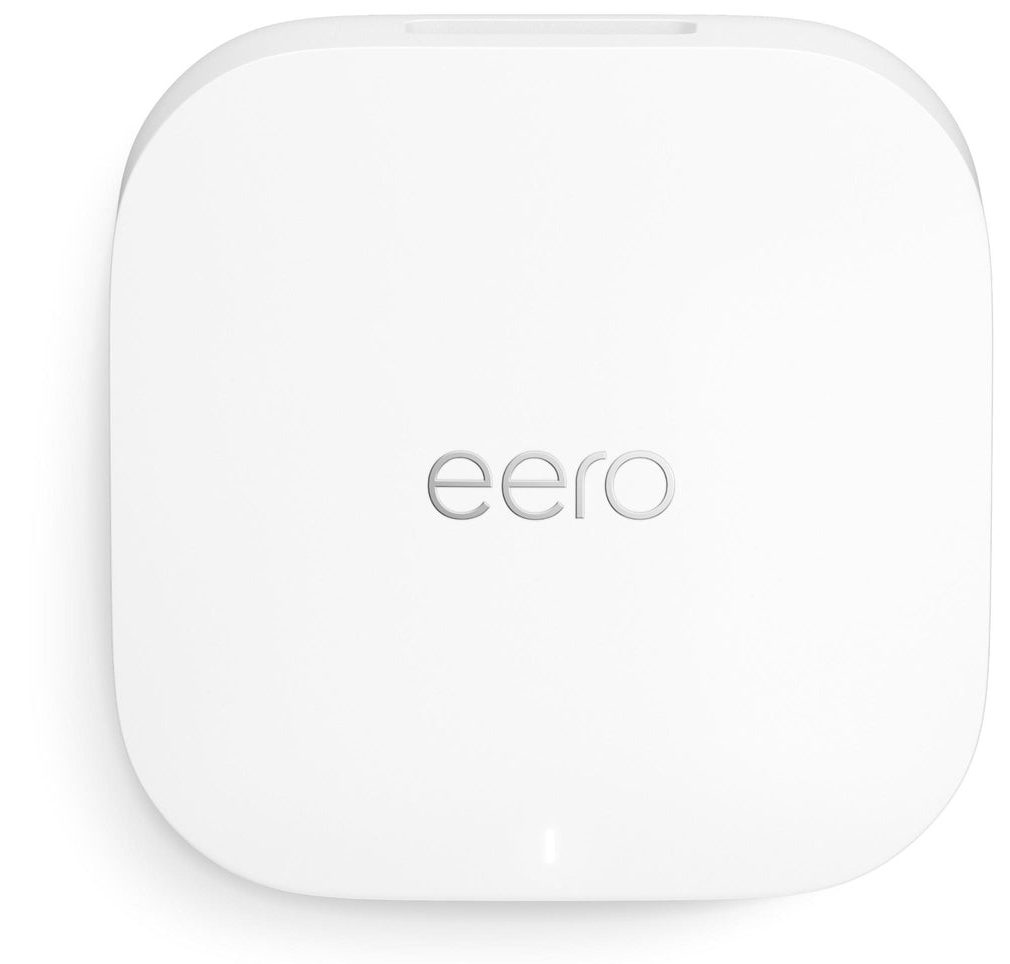
Setting up your Eero Wi-Fi system is fast and straightforward, with no advanced technical skills required. Most homes can be fully connected and enjoying strong, whole-home Wi-Fi in about 10–15 minutes.
Before you begin, make sure you have at least one Eero device (additional units are recommended for larger homes), your internet modem from your service provider, a smartphone, and the free Eero app downloaded from the App Store or Google Play. You’ll also need an active internet connection.
Start by downloading and opening the Eero app on your smartphone. Search for “Eero” in your app store, install the app, and sign in or create a free Eero account. The app will guide you through the entire setup process.
Next, unplug your modem and disconnect any existing router if you have one. Leave the modem unplugged for about 30 seconds, then plug it back in and allow it to fully restart.
Once the modem is powered back on, plug your main Eero device into a nearby power outlet. Using the included Ethernet cable, connect this Eero directly to your modem. This unit will act as your “gateway” Eero, meaning it connects your home network to the internet.
Open the Eero app and follow the on-screen instructions. You’ll be prompted to name your Wi-Fi network and create a secure password. After the main Eero is online, the app will guide you through adding additional Eero devices if you have them.
For additional Eeros, plug each unit into a power outlet in different areas of your home, ideally spaced about 30 to 50 feet apart. The app will help confirm proper placement and ensure each device is providing strong, reliable coverage.
Once all Eero devices are set up, connect your phones, computers, smart TVs, gaming systems, and other devices to your new Wi-Fi network using the name and password you created.
Through the Eero app, you can view all connected devices, create a guest network, set up family profiles, pause internet access for specific devices, and enable optional Eero Secure features for added security and content filtering.
After setup is complete, your Eero mesh Wi-Fi system will be fully active, providing fast, consistent, whole-home internet coverage.
Eero is a mesh Wi-Fi system from Amazon designed to deliver fast, reliable, whole-home internet coverage, along with built-in smart-home integration and optional advanced security features. Instead of relying on a single router, multiple Eero units work together to create one seamless network that covers your entire home. As you move from room to room, your devices automatically connect to the strongest signal, helping eliminate dead zones, dropped connections, and buffering.
Eero’s mesh technology is ideal for homes of all sizes. Systems like the Eero Pro 6E use tri-band Wi-Fi 6E technology and can cover roughly 2,000 square feet per unit, making them well suited for multi-gig internet connections, heavy streaming, gaming, and homes with many connected devices. Eero systems are scalable, so you can add more units as your needs grow.
Eero also doubles as a smart-home hub. With a built-in Zigbee hub, compatible smart devices can be controlled through Alexa without the need for an additional hub. Eero supports Thread and Matter, making it easier to connect and manage modern smart-home devices within Amazon’s ecosystem. On compatible Echo devices, Eero Built-In allows the Echo to act as an additional mesh access point, extending coverage by about 1,000 square feet and up to 100 Mbps per Echo.
For customers who want added protection and control, Eero offers optional advanced security and parental control features. These include DNS-level ad blocking, protection against malware and phishing attempts, content filtering by user profile, and visibility into blocked threats. Parental controls allow you to schedule internet access by device, making it easy to pause kids’ devices during homework time or at bedtime. Eero also supports Internet Backup, allowing you to set up to eight backup connections—such as a mobile hotspot—so your network can stay online if your primary internet connection goes down.
Setup and management are simple through the Eero app on iOS or Android. The app guides you through plug-and-play installation and provides tools for real-time network monitoring, device management, profile creation, guest networks, and automatic firmware updates. Over-the-air updates help keep your system secure and add new features over time. Many users praise Eero for solving coverage issues, supporting large numbers of devices, and simplifying smart-home integration.
In everyday use, Eero fits a wide range of needs. Smaller homes or light users may find models like the Eero 6+ deliver strong Wi-Fi 6 performance and solid coverage. Larger households, tech-heavy homes, or those with multi-gig internet benefit from Pro 6E or Max 7 systems, which are designed to handle many devices, online gaming, 4K streaming, and even outdoor coverage with compatible units. For smart-home enthusiasts, Eero reduces clutter by combining routing and smart-home control into one system, and for families, Eero Plus adds valuable tools like ad blocking, content filtering, threat detection, and backup connectivity.
- How to Reboot Your Eero Router Manually.
- Unplug the Eero router (main gateway unit) from the power outlet.
- Wait about 30 seconds.
- Plug it back in.
- Wait 1–2 minutes for the Eero light to turn solid white—this means it’s back online.
- If you have additional Eero units (beacons or mesh nodes):
- Unplug them all.
- Wait 30 seconds.
- Plug them in starting with the main unit, then each additional Eero.
- How to Reboot Using the Eero App
- Open the Eero app (iOS or Android).
- Tap on the Settings icon (bottom right).
- Go to Advanced > Restart network.
- Confirm when prompted.
- This reboots all your Eero devices at once—no need to unplug anything.
- When Should You Reboot?
- Internet feels slow
- Devices keep disconnecting
- After a firmware update
- Your ISP has service issues that may now be resolved
Start by checking power to your Eero device. Make sure it is plugged in securely and that the LED light is on. A flashing blue light means the Eero is ready to be set up, a solid white light indicates it is connected and online, and a red lightmeans there is no internet connection.
Next, power cycle your equipment, as this resolves most connection issues. Begin by unplugging your modem, waiting about 30 seconds, and then plugging it back in. Once the modem has fully restarted, unplug the main Eero gateway unit from power, wait 30 seconds, and plug it back in. If you have additional Eero units, unplug and reconnect them as needed. Allow one to two minutes after powering everything back on; the LED on the main Eero should turn solid white when the connection is restored.
Check your internet service by confirming that your modem is working properly. If possible, connect a laptop or computer directly to the modem using an Ethernet cable to see if you have internet access. If there is no connection, the issue may be with your internet service provider.
Use the Eero app on your smartphone to help diagnose the problem. Open the app and look for any warnings or “offline” messages. Tap on your Eero network to see which unit may be offline or experiencing a weak connection, and follow the in-app recommendations for restarting or reconnecting devices.
Inspect all cables to ensure they are securely connected and undamaged. The Ethernet cable from your modem should be plugged into the correct port on the Eero, typically labeled with a globe icon or marked “WAN.”
If none of these steps resolve the issue, you can perform a factory reset as a last resort. Press and hold the reset button on the bottom of the Eero for at least 15 seconds until the LED flashes red. Keep in mind that this will erase all settings, and you will need to set up your network again using the Eero app.
- Open the Eero App
- Available on iOS or Android.
- Tap on the “Settings” Tab
- It’s usually at the bottom right.
- Tap “Network Settings”
- Tap “Network name & password”
- Edit Your Info
- Network name: Change your Wi‑Fi name (SSID).
- Password: Enter a new Wi‑Fi password.
- Tap “Save” (top right)
- What Happens After You Change It?
- All devices connected to your old network name will be disconnected.
- You’ll need to reconnect devices using the new network name and password.
- Your Eero system will update within a few seconds.
- Tips:
- Choose a strong password (at least 12 characters with letters, numbers, and symbols).
- Avoid using personal info like your name or address in the network name
Yes, there is a dedicated Eero mobile app that you use to set up and manage your Eero mesh network, available on iOS and Android.
Choosing Eero as your home Wi-Fi system offers a strong mix of reliability, simplicity, and smart features—making it an excellent option for households that want consistent coverage without the hassle of complex setup.
Eero is designed for easy, app-based installation. Using the Eero mobile app, you can set up your entire network in just a few minutes. There’s no technical expertise required—simply plug in the Eero device, follow the step-by-step instructions in the app, and your Wi-Fi network is up and running.
With built-in mesh technology, Eero provides whole-home Wi-Fi coverage by allowing multiple Eero units to work together as one seamless network. Each unit communicates with the others to spread strong Wi-Fi throughout your home, helping eliminate dead zones and weak signals. This makes Eero especially effective in larger homes, multi-story houses, or homes with thick walls.
Eero also takes care of security and performance automatically. The system updates itself in the background with the latest features and security patches, keeping your network protected without requiring manual updates or ongoing maintenance.
For households that want additional control, Eero offers an optional Eero Secure subscription. This includes parental controls for filtering content, setting internet schedules, and pausing access on specific devices. It also adds network-wide ad blocking and protection against malware, phishing, and other online threats.
As part of the Amazon ecosystem, Eero integrates seamlessly with Alexa, allowing you to manage your network using voice commands. You can pause Wi-Fi, manage connected devices, or adjust settings hands-free through compatible Alexa-enabled devices.
Eero delivers reliable performance through its TrueMesh technology, which continuously analyzes your network and automatically routes traffic in the most efficient way. This real-time optimization helps reduce buffering, lag, and congestion—especially when many devices are connected at once.
The system is also highly scalable. You can start with a single Eero router and easily add more Eero units or Beacons as your coverage needs grow. This flexibility makes Eero a great fit for everything from small apartments to large, multi-story homes.
Overall, Eero is an ideal choice for families who want simple Wi-Fi management and parental controls, as well as for larger households that need strong, reliable coverage throughout the entire home.
Eero is designed to work with virtually all standard Wi-Fi–enabled devices, making it a flexible, reliable, and easy-to-use mesh Wi-Fi system for nearly any home. Because it supports both newer and older Wi-Fi standards, most devices connect automatically with no special setup required.
Compatible Devices Include:
Computers & Laptops
Windows PCs
macOS devices
Chromebooks
Smartphones & Tablets
iPhones and iPads (iOS 15 or newer recommended)
Android phones and tablets (Android 9 or newer recommended)
Smart TVs & Streaming Devices
Roku
Amazon Fire TV
Apple TV
Chromecast
Smart TVs from Samsung, LG, Sony, Vizio, and more
Gaming Consoles
Xbox
PlayStation
Nintendo Switch
Supports both wireless and Ethernet connections
Smart Home Devices
Voice assistants: Alexa and Google Assistant
Smart plugs, lights, doorbells, and thermostats (Ring, Nest, Ecobee, Wyze, etc.)
Security cameras and systems such as Arlo and Blink
Printers & Network Peripherals
Wireless printers
Any device that uses standard Wi-Fi networking
Wi-Fi Standards Supported:
Wi-Fi 5 (802.11ac)
Wi-Fi 6 (802.11ax) — Eero 6, 6+, and Pro 6
Wi-Fi 6E — Eero Pro 6E
Wi-Fi 7 — Eero Max 7
Backward compatible with older standards like Wi-Fi 4 (802.11n)
Wired Device Support:
Ethernet ports available on most Eero models
Ideal for desktop PCs, gaming consoles, and streaming boxes
Network switches can be added for extra Ethernet ports
Smart-Home Integration:
Native Amazon Alexa support for voice commands such as pausing Wi-Fi or running speed tests
Matter and Thread support on newer models for next-generation smart-home devices and simplified automation
With broad compatibility, modern standards, and smart-home support built in, Eero makes it easy to connect everything in your home—now and in the future.
Maximum wireless speed: Up to 2.3 Gbps
Ethernet ports: Two ports per unit for wired connections
Best suited for: Homes with gigabit or multi-gig internet, heavy streaming, gaming, and advanced smart-home setups
Tips to get the best performance from your Eero system:
Use the Eero app’s built-in speed test to monitor your connection and confirm you’re getting the speeds you expect.
Enable wired backhaul whenever possible by connecting Eero units with Ethernet for faster, more stable performance.
Place Eero units in open areas, ideally 30–50 feet apart, to maximize coverage and signal strength.
Connect high-demand devices—such as gaming consoles, desktop computers, or streaming boxes—via Ethernetwhen available.
Consider upgrading to Eero Pro 6E or Eero Max 7 if you have multi-gig internet service or a large number of connected devices.
This combination of advanced hardware and smart placement helps ensure fast, consistent Wi-Fi throughout your entire home.
LED Color | Status / Meaning |
Solid White | Eero is powered on and ready / online |
Pulsing White | Eero is starting up or booting |
Blue | Eero is in setup mode (ready to be added to the network) |
Flashing Blue | Eero is in Bluetooth pairing mode |
Yellow/Amber | Eero is experiencing connectivity issues or can’t reach the internet |
Flashing Yellow | Eero has lost connection to the gateway or internet |
Red | Eero has encountered a critical error (e.g., no connection, or hardware failure) |
No Light | Eero is powered off or not getting power |
Additional Notes:
During normal operation, you’ll mostly see solid white
If you see yellow or red, try rebooting the Eero or checking your modem/internet connection
The LED is located on the top or front of the device, depending on the model.
Yes! You can use an Eero system as your gateway, but with a few things to keep in mind: Yes! You can use an Eero system as your gateway, but with a few things to keep in mind:
- What it means:
- The Eero router acts as your main gateway, managing your internet connection, DHCP (assigning IP addresses), NAT (network address translation), and firewall.
- This means your modem connects directly to the Eero router’s WAN port.
- When to use Eero as Gateway:
- If you have a modem only (no built-in router), Eero is perfect to be your main router/gateway.
- If you want full Eero network control, including parental controls and security features.
- Things to watch out for:
- If your ISP provided a modem/router combo device, it’s best to put that device into bridge mode or disable its Wi-Fi and routing features to avoid network conflicts (double NAT).
- If you don’t bridge your ISP device, you might get issues like:
- Double NAT causing slower speeds or connection problems
- Difficulty with port forwarding or gaming
- Network instability
- What it means:
If you get an error saying your Eero is already registered, it usually means the device is linked to another account or wasn’t properly reset. Here’s what to do:
- Confirm if You Previously Registered It
- Check if you or someone in your household set up the Eero before.
- If yes, try logging in with that account to manage the device.
- Factory Reset Your Eero
- This removes any previous account info tied to the device.
- How to reset:
- Find the reset button on the back or bottom of the Eero unit.
- Hold the button for about 15 seconds until the LED flashes yellow or red.
- Release the button and wait for the Eero to restart.
- Remove Eero From the Previous Account
- If you have access to the old account, remove the Eero from that account via the Eero app.
- This frees it up to be registered on your new account.
- Contact Eero Support
- If you can’t reset it or don’t have access to the old account, contact Eero support.
- Be ready to provide the device’s serial number (usually on the bottom of the unit) and proof of purchase.
- Confirm if You Previously Registered It
If you see multiple Eeros found during setup, here’s what to do:
- Troubleshooting Multiple Eeros Found During Setup
- Identify Your Eero Device
- Make sure you’re trying to set up the correct Eero unit (usually the one you just plugged in).
- Check the serial number on the device and match it to what the app shows (the app often displays part of the serial).
- Reset Unwanted Eeros
- If old or stray Eeros show up, they might be leftover from previous setups.
- Perform a factory reset on any Eero you don’t want to use right now:
- Hold the reset button for 15 seconds until the LED flashes yellow/red.
- Disable Nearby Eero Networks Temporarily
- If neighbors or others nearby have Eeros, their devices might appear.
- Try setting up your Eero in a location away from other Eero networks, or temporarily turn off neighbor’s Wi-Fi (if possible).
- Ensure Bluetooth is Enabled
- The Eero app uses Bluetooth to detect nearby devices.
- Make sure your phone’s Bluetooth is on during setup.
- Restart the Setup Process
- Close the app and reopen it.
- Power cycle (unplug and plug back in) the Eero unit you want to set up.
- Retry discovery and setup.
- Identify Your Eero Device
- Troubleshooting Multiple Eeros Found During Setup
- Check Power & Connection
- Make sure the Eero device is plugged in and powered on.
- The LED should be pulsing white, indicating it’s ready for setup.
- Ensure the Eero is connected to your modem/router via Ethernet if it’s the gateway unit.
- Enable Bluetooth on Your Phone
- The Eero app uses Bluetooth to detect nearby devices during setup.
- Make sure Bluetooth is turned on and working on your phone or tablet.
- Bring Your Phone Closer
- Move your phone closer (within a few feet) to the Eero device during setup.
- Walls and interference can block the Bluetooth signal.
- Restart Devices
- Power cycle (unplug and replug) your Eero device.
- Restart your phone.
- Relaunch the Eero app and try again.
- Check for Interference
- Move the Eero away from other electronics, microwaves, or cordless phones that might cause interference.
- Update the App
- Make sure you’re using the latest version of the Eero app.
- Try a Different Device
- If possible, try setting up with another phone or tablet.
- Check Power & Connection
- Unbox and Connect Your Eero Gateway
- This is the main Eero that connects directly to your modem.
- Plug one end of the Ethernet cable into your modem, and the other into the Eero’s WAN port (usually labeled or color-coded).
- Plug the Eero into a power outlet.
- LED should pulse white, meaning it’s ready for setup.
- Download the Eero App
- Available on iOS or Android.
- Search for “Eero” in the App Store or Google Play.
- You’ll need to create an Eero account or log in.
- Start Setup in the Eero App
- Open the app and tap “Set up Eero network”.
- Follow the prompts:
- Allow Bluetooth and location access
- The app will search for your Eero device
- Name your network (SSID) and create a secure password.
- Add Additional Eeros (If Using More Than One)
- Place additional Eero units in central, open areas for best coverage.
- Plug them into power only (no Ethernet needed unless you’re wiring them).
- In the app, tap “Add Eero” and follow the prompts to pair them.
- Complete Setup and Test Connection
- Once all devices are added, the app will test your internet connection.
- You can now:
- See connected devices
- Set parental controls
- Create profiles
- Enable guest network
- Unbox and Connect Your Eero Gateway
- Tips for Best Performance:
- Place Eeros 15–40 feet apart in open areas
- Don’t hide them in cabinets or behind furniture
- Option 1: Soft Reset (Keeps Eero Linked to Account)
- Use this to fix minor issues or reset network settings without removing the Eero from your account.
- How to Soft Reset:
- Find the reset button (a small hole) on the back or bottom of the Eero device.
- Use a paperclip or similar tool to press and hold the button for 7 seconds.
- Release when the LED starts flashing yellow.
- The Eero will reboot and retain your account info.
- Option 2: Hard Reset (Factory Reset)
- Use this to completely remove the Eero from your network/account—great if you’re selling it or starting fresh.
- How to Hard Reset:
- Press and hold the reset button for 15 seconds.
- Release when the LED turns red.
- The Eero will reset and the LED will return to pulsing white (ready to set up again).
- Note: A hard reset erases all settings
- After Reset:
- Open the Eero app and follow the prompts to re-add the device if needed.
- You’ll need your Eero login and possibly your modem info.
- Step 1: Download the Eero app
- iPhone/iPad: Open the App Store, search for “Eero”
- Android devices: Open the Google Play Store, search for “Eero”
- The app is called “eero wifi system” by Amazon.
- Step 2: Create or Sign In to Your Eero Account
- Open the Eero app.
- Tap “Create account” or “Log in” if you already have one.
- Enter your email and phone number.
- You’ll get a verification code via email or text — enter it in the app to continue.
- Step 3: Start Your Network Setup
- Tap “Set up Eero network”.
- Allow the app to access Bluetooth and Location (required to detect your Eero devices).
- Follow on-screen instructions to:
- Connect your first Eero to your modem with an Ethernet cable.
- Plug in the Eero and wait for the LED to pulse white.
- The app will detect the Eero via Bluetooth and start setup.
- Step 4: Create Your Wi Fi Network
- Choose a network name (SSID) (e.g., “HomeWiFi”)
- Set a secure password (minimum 8 characters)
- Tap “Next” to finish creating your Wi-Fi network.
- Step 4: Create Your Wi Fi Network
- Choose a network name (SSID) (e.g., “HomeWiFi”)
- Set a secure password (minimum 8 characters)
- Tap “Next” to finish creating your Wi-Fi network.
- You’re All Set!
- Once complete, you can:
- See all connected devices
- Set up profiles, content filtering, or guest networks
- Monitor performance and usage
- Once complete, you can:
- Eero Official Website
- Visit eero.com for detailed setup guides, FAQs, and troubleshooting.
- They offer step-by-step instructions and videos.
- Eero App Help Section
- Open the Eero app on your phone.
- Go to Settings > Help & Support for tutorials and troubleshooting tips.
- Eero Support Center
- Access the support articles at support.eero.com.
- Search for topics like “Getting Started,” “Setup,” and “Troubleshooting.”
- YouTube
- Look for official Eero setup videos or user tutorials.
- Visual guides can make setup easier.
- User Manual Included in Box
- Check the printed quick start guide included with your Eero device for basic setup info.
- Eero Official Website
Ready to Get Connected?
It’s easy, just click the button bellow and use our online order section. Add the services you want, fill in your info, and you are ready to go!