
Arris 2472 FAQ
Get answers quickly for our most asked questions
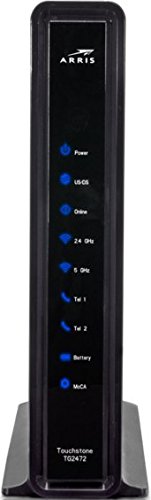
A DOCSIS 3.0 cable gateway that combines:
Cable modem
Wi-Fi router (2.4 GHz + 5 GHz)
Ethernet switch
Phone (VoIP) support on some ISP versions
What internet speeds does it support?
DOCSIS 3.0 with 32 downstream × 8 upstream channels
Capable of up to ~1 Gbps (real-world speeds depend on your ISP plan and network conditions)
802.11ac (Wi-Fi 5)
Dual-band: 2.4 GHz and 5 GHz
Yes for most homes
4 Gigabit Ethernet (LAN) ports
Common reasons:
Wi-Fi interference
Outdated firmware (ISP-controlled)
Too many connected devices
Signal issues from the cable line
Power: solid = on
DS/US: blinking = connecting, solid = locked
Online: solid = connected
Wi-Fi: blinking = activity
Plug the coax cable into an active cable outlet.
Connect the power.
Wait for the US/DS and Online lights to settle.
Connect devices via Wi-Fi or Ethernet.
Default SSID and Wi-Fi passphrase are printed on a sticker on the gateway’s label.
Check the coax connection is tight and the outlet is live.
Reboot the gateway (unplug 10–15 s).
Try a different outlet or cable cord.
Contact your ISP to ensure the gateway is provisioned on their network.
Press and hold the reset button (often recessed) for ~15 seconds to restore defaults, including Wi-Fi credentials and admin login.
In an open, central area away from appliances or metal surfaces, about 3 ft off the ground for optimal Wi-Fi coverage.
Ready to Get Connected?
It’s easy, just click the button bellow and use our online order section. Add the services you want, fill in your info, and you are ready to go!